Overview
Preference settings control how Journey appears and behaves for your user account. Use Preferences to personalize your default views, display options, timezone, language, or other account level settings.
These settings help you work more efficiently by aligning Journey with your daily workflow.
Things to Know
- Preference options may vary depending on your organization’s Journey configuration.
- Some preferences may only affect your personal account.
- Your administrator may control certain default settings.
- Updating preferences does not usually change records owned by other users.
Navigating to Preference Settings
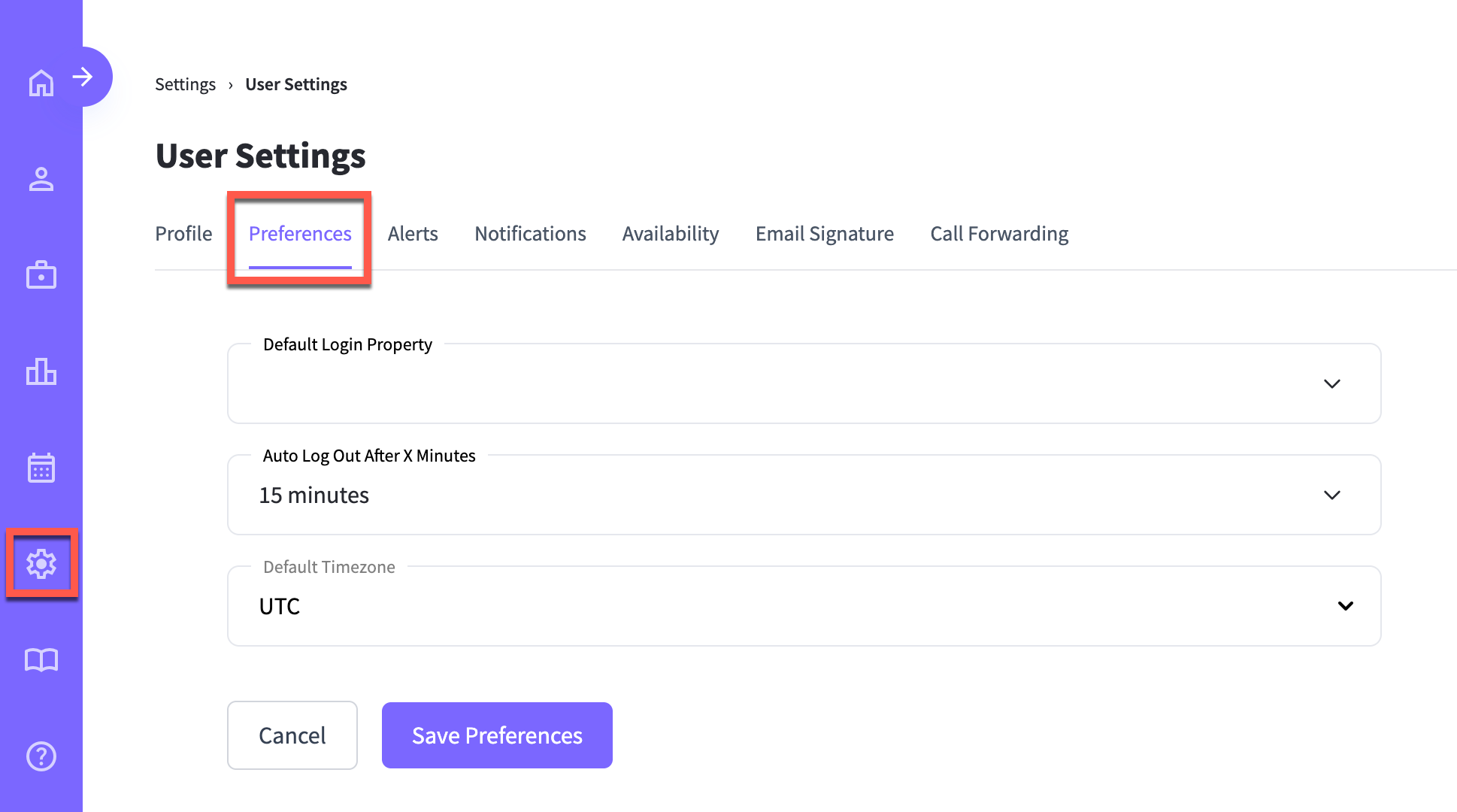
To access User Preferences, go to
- Journey > Settings > User settings > Preferences.
Updating Preference Setting Fields
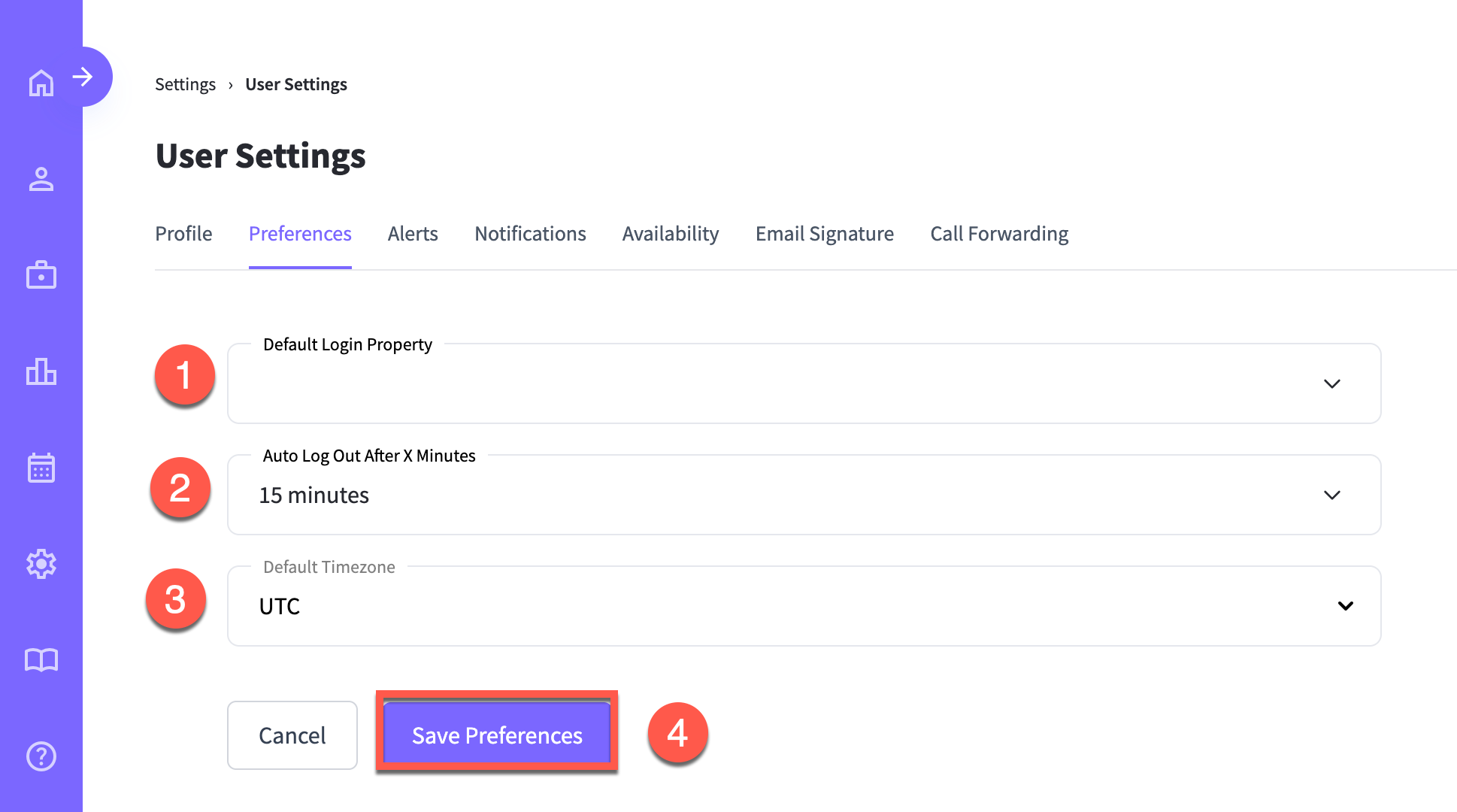
Preference settings include the following fields:
- Default Login Property: The property information that defaults.
- Auto Log Out after X Minutes: The Decide when Journeywill time out after.
- Default Timezone: The timezone used for dates, times, reminders, and scheduled activity.
Select Save Preferences when finished.
Was this article helpful?
That’s Great!
Thank you for your feedback
Sorry! We couldn't be helpful
Thank you for your feedback
Feedback sent
We appreciate your effort and will try to fix the article